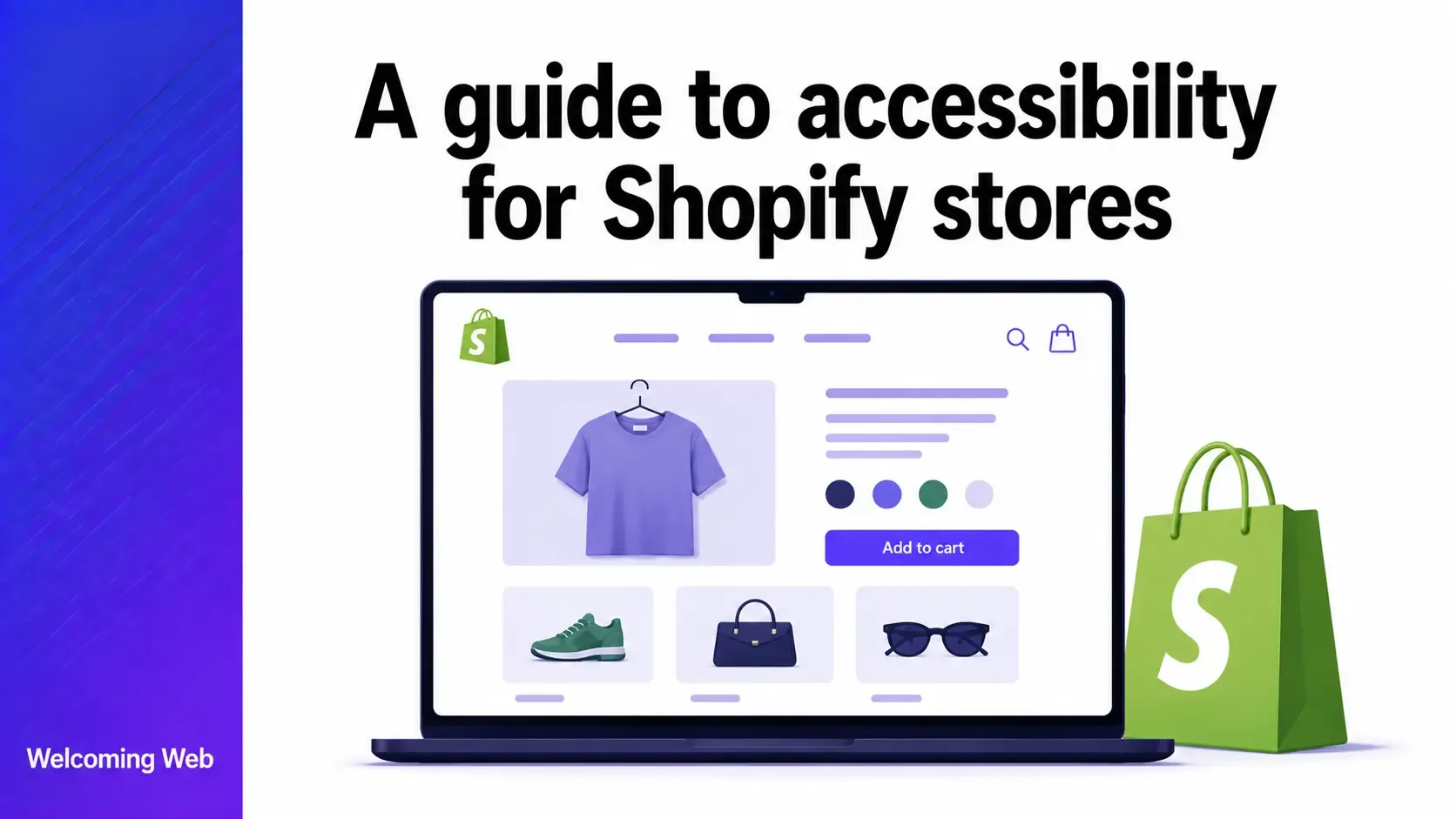
Shopify accessibility is shaped by the theme a merchant chooses, the apps they install, and the content they publish as much as by the platform itself. Shopify provides a foundation through its Dawn theme and developer accessibility standards, but the accessibility of any individual store depends on decisions made at every layer. This guide covers where failures most commonly occur on Shopify stores and how to test and fix them.
Is Shopify accessible out of the box?
Shopify has made genuine accessibility investment in its platform, but accessibility for Shopify stores extends well beyond what the platform provides out of the box. The Shopify Help Center's accessibility guidance addresses colour contrast, text readability, and keyboard navigation, and Shopify's developer accessibility best practices require that all links, buttons, dropdown navigation, and form controls be operable by keyboard. The Dawn theme, Shopify's reference theme used as the foundation for many Shopify themes, is built with accessibility in mind and serves as the accessibility baseline for the Shopify Theme Store.
Shopify itself is explicit that following its accessibility guidelines does not guarantee full accessibility. The Help Center states directly: "Because there are many factors to consider when creating an accessible website, only following guidelines below doesn't guarantee that your online store is fully accessible." The platform provides a foundation, but the accessibility of any individual Shopify store depends on decisions made at the theme level, the app level, and the content level.
Who is responsible for accessibility on a Shopify store?
Understanding the division of accessibility responsibility between Shopify and merchants is essential for store owners trying to understand their compliance position.
Shopify controls the core platform infrastructure, the admin interface, and the hosted checkout flow. The checkout is a hosted environment that merchants have limited ability to customise directly. For standard Shopify plans, the checkout template is managed by Shopify, which means merchants cannot easily modify the underlying HTML and CSS of the checkout. If Shopify's checkout has accessibility issues, the merchant's ability to fix them independently is constrained. Shopify has invested in making its standard checkout accessible, but merchants should verify the accessibility of the checkout experience.
Merchants control the theme, all content, all apps installed on the store, and any customisations made to the theme through the Shopify admin or through code edits. This means merchants are responsible for the accessibility of their product images and alt text, their navigation structure, their product page layouts, their filter and search functionality, and any interactive components introduced through apps or custom code.
Shopify Plus merchants have access to checkout extensibility, which provides more flexibility to customise the checkout experience. With that flexibility comes greater responsibility for maintaining the accessibility of any checkout customisations made.
Why do Shopify themes cause accessibility failures?
The theme is the most common source of Shopify accessibility failures on any store, controlling the visual presentation, the heading hierarchy, the colour contrast, the focus indicators, and the semantic HTML structure from the outset.
Many Shopify themes remove the default browser focus outline in their CSS, making it impossible for keyboard users to see which element currently has focus. This is a WCAG 2.4.7 failure and one of the most widespread keyboard accessibility failures across Shopify stores. Colour palettes chosen for aesthetic appeal frequently fail the 4.5:1 contrast ratio required by WCAG 1.4.3, with light grey text on white backgrounds and pastel combinations among the most common culprits.
Heading hierarchy failures are equally common. Theme templates frequently use heading elements for visual styling rather than document structure, producing hierarchies that break screen reader navigation. A theme that outputs an <h3> for product titles because it looks right at that size, regardless of where the product sits in the page hierarchy, creates a structural failure that affects every product listing page.
Custom-styled <div> elements used for buttons, dropdown menus, and interactive filters instead of native HTML elements are another consistent source of keyboard accessibility failures. Native HTML elements have built-in keyboard behaviour. Custom elements require explicit keyboard event handling to be added, which many themes do not include. Missing skip navigation links compound this: without one, keyboard users must tab through every navigation item on every page load before reaching the product content.
Which Shopify themes are most accessible?
The Dawn theme, which Shopify maintains as its reference implementation, is the most reliably accessible starting point for Shopify stores. Themes listed in the Shopify Theme Store are required to meet Shopify's accessibility requirements for themes, which include keyboard accessibility, visible focus states, and colour contrast requirements. Third-party themes sold outside the Shopify Theme Store are not subject to these requirements and vary significantly in their accessibility quality. When evaluating any theme, checking that focus indicators are visible, the heading hierarchy is logical, and navigation menus are keyboard operable gives a reliable baseline picture of its accessibility quality.
Why do Shopify apps introduce accessibility barriers?
Every app installed on a Shopify store that adds front-end functionality has the potential to introduce new accessibility barriers, and improving accessibility for Shopify stores means evaluating app quality as carefully as theme quality.
Review and ratings apps are a frequent source of failures. Star rating displays with no text equivalent, form fields without proper labels, and pagination controls with icon-only buttons are common in review widgets that are visually clear but programmatically opaque to screen reader users.
Pop-up and modal apps introduce some of the most disruptive accessibility failures on Shopify stores. Discount pop-ups, newsletter sign-up modals, and exit-intent overlays frequently trap keyboard focus, fail to return focus to the trigger element when closed, and do not respond to the Escape key. Live chat and support widgets share similar problems, introducing keyboard traps and low-contrast interfaces that cannot be fixed without engaging the vendor directly.
Size guide and product comparison modals frequently fail to manage focus correctly when they open and close. Cookie consent banners introduced through GDPR compliance apps are a particularly common source of keyboard traps, making it impossible for keyboard users to dismiss the banner and access the store's content. Each of these failures originates in a third-party component that the merchant did not build and often cannot fix unilaterally.
What are the most common Shopify accessibility issues?
Beyond theme and app failures, several Shopify accessibility issues appear consistently across stores regardless of the theme or apps in use:
- Missing alt text on product images. Shopify provides an alt text field for every product image through the admin, but filling it in is not enforced. A store with hundreds of products and multiple images per product can accumulate thousands of missing alt text instances. Each one is a WCAG 1.1.1 failure that leaves screen reader users without the product information they need to make a purchasing decision.
- Non-descriptive link text. "View details," "Shop now," and "Learn more" links on product cards and collection pages give screen reader users no information about which product each link leads to. When a screen reader user pulls up a list of links on a page, identical link text across multiple products is impossible to navigate usefully.
- Inaccessible product variant selectors. Colour swatches and size selectors built with custom styled elements rather than accessible form controls fail keyboard users and screen reader users. A colour selector that conveys options through colour alone, with no text label, fails WCAG 1.1.1 and 1.4.1 and is among the most commonly cited failures in ADA demand letters targeting ecommerce stores.
- Silent cart updates. When a customer adds a product to the cart, the cart icon updates visually to show the new item count. Without an ARIA live region announcing the change, screen reader users receive no confirmation that anything happened.
How do you test a Shopify store for accessibility?
Testing Shopify accessibility requires a combination of automated scanning and manual testing, with specific attention to the purchase journey and app-introduced components.
- Run an automated scan. Welcoming Web's scanning tools check pages against WCAG 2.2, ADA Title III, EN 301 549, and UK Equality Act 2010 standards, recording where each issue appears, what type of issue it is, and which criterion it relates to. Running a scan across the homepage, a collection page, a product page, and the cart gives a comprehensive picture of detectable accessibility failures.
- Test the full purchase journey by keyboard. Tab through the entire journey from product discovery through to order confirmation using only the keyboard. Check that all interactive elements are reachable and operable, that focus is visible at every step, that no keyboard traps occur, and that dynamic updates such as cart additions are announced.
- Test with a screen reader. NVDA with Firefox or VoiceOver with Safari verifies that product images are announced with meaningful descriptions, that variant selectors communicate their options and current state, that form fields are labelled correctly, and that error messages are announced when validation fails.
- Review each app separately. For every app that adds front-end functionality, check keyboard accessibility of any interactive component it introduces and whether it creates keyboard traps or focus management failures.
How do you fix Shopify accessibility issues?
The approach to fixing Shopify accessibility issues depends on where the issue originates and what level of access the merchant has to that part of the store.
Theme-level issues require either editing the theme code directly in the Shopify admin's theme editor or switching to a more accessible theme. Reinstating focus indicators by overriding outline: none declarations in the theme's CSS immediately improves keyboard accessibility across the entire store. Heading hierarchy failures in Liquid templates require editing those templates directly, typically through the theme editor or a developer with Liquid knowledge.
App-level issues are best addressed at the point of app selection. Evaluating the accessibility of an app before adding it to the store is significantly less costly than remediating failures it introduces across hundreds of pages. Where an installed app has accessibility failures, the first step is contacting the developer. If the vendor cannot provide an accessible solution within a reasonable timeframe, switching to an accessible alternative or removing the app is the most reliable path.
Content-level fixes are the most accessible to non-technical merchants. Alt text for product images is added through the product page in the Shopify admin. Non-descriptive link text can be updated through the content editor. Neither requires code access or developer involvement.
Checkout fixes for merchants on standard Shopify plans are constrained by the hosted checkout environment. Where checkout accessibility issues are identified, reporting them to Shopify is the appropriate first step. Shopify Plus merchants using checkout extensibility can address checkout accessibility issues directly in their custom checkout components.
Welcoming Web's AI-assisted remediation generates suggested fixes for supported issue types identified during scanning, including missing image descriptions, colour contrast failures, and unlabelled form fields. Teams can review each suggestion before it is applied and choose to handle fixes manually if they prefer.
Shopify accessibility and legal compliance
Shopify stores are subject to the same legal accessibility obligations as any other ecommerce website. ADA Title III applies to Shopify stores serving US customers, and ecommerce has consistently been one of the most targeted sectors in ADA website accessibility litigation.
The European Accessibility Act, enforceable from 28 June 2025, applies to any Shopify store selling to EU consumers regardless of where the merchant is based. A UK merchant, a US merchant, or an Australian merchant with EU customers faces EAA obligations on their Shopify store.
The fact that accessibility failures originate in a Shopify theme or a third-party app does not transfer legal liability away from the merchant. Under ADA Title III and the EAA, the merchant is responsible for the accessibility of their store regardless of which component introduced the barrier.
Every layer of a Shopify store shapes its accessibility
Shopify provides a solid starting point through its platform investment, its Dawn theme, and its Theme Store accessibility requirements, but Shopify accessibility is ultimately shaped by the theme, the apps, and the content decisions made every day.
A free accessibility scan with Welcoming Web takes 60 seconds and gives you a prioritised picture of where your Shopify store currently stands against WCAG 2.2 and ADA standards. Manual testing of the checkout flow and any app-introduced components completes the picture.

Written by
Alisan Erdemli
CEO at Welcoming Web, and web accessibility technology expert
Connect on LinkedInReady to Make Your Website Accessible?
Join thousands of satisfied users who trust WelcomingWeb to deliver fully accessible, compliant, and inclusive digital experiences.