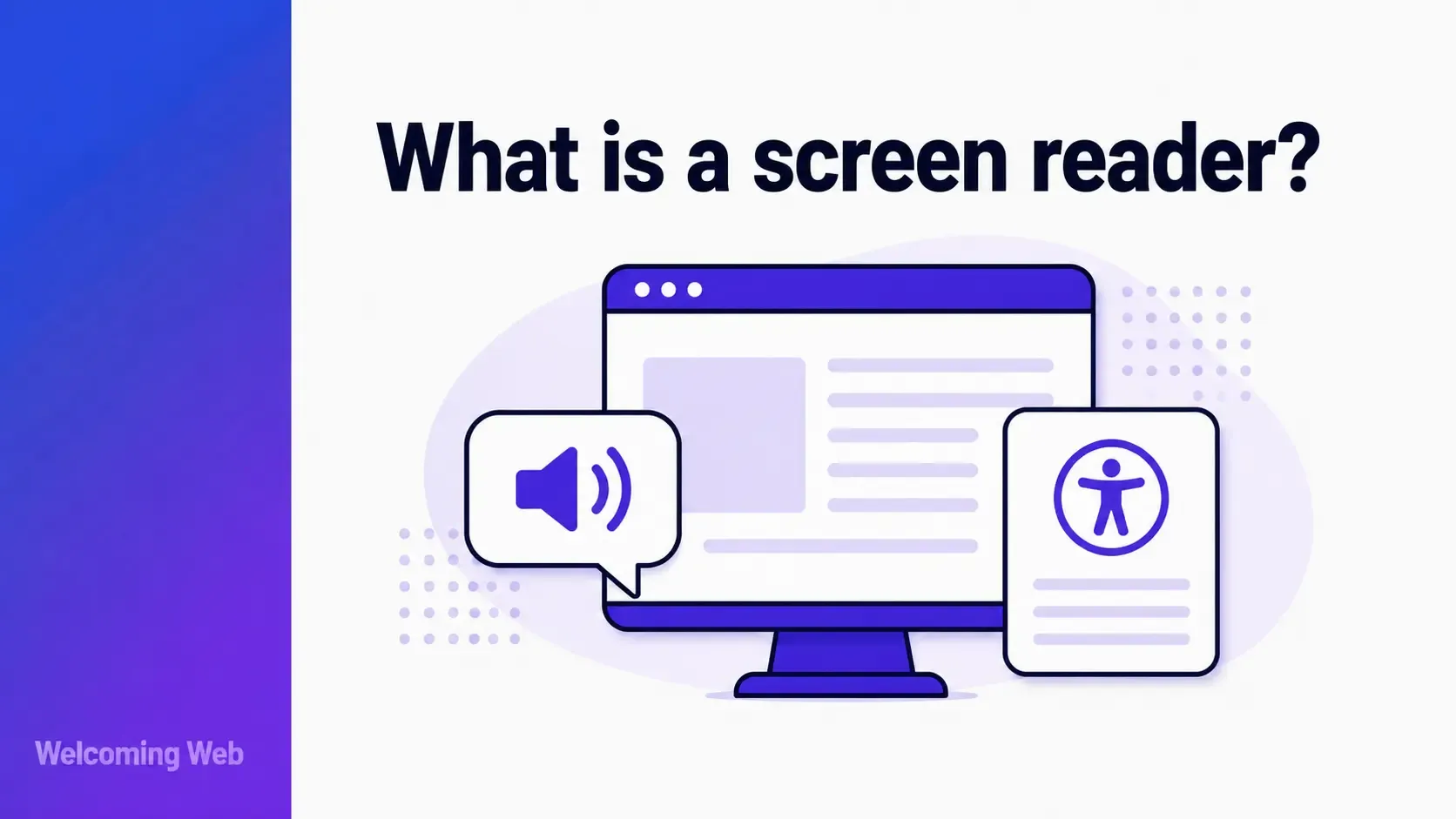
A screen reader converts digital content into audio or braille, allowing users who cannot see a screen to access websites, applications, and documents. Screen readers are keyboard-driven by design and interpret the underlying code of a page rather than its visual presentation. This guide covers how they work, which users rely on them, what they need from a website to function correctly, and which WCAG requirements govern screen reader accessibility.
What is a screen reader?
A screen reader is assistive technology software that reads digital content aloud through a speech synthesiser or outputs it to a refreshable braille display. When a user navigates an accessible web page with a screen reader, they hear the page's content announced through their device's speakers or feel it through a braille device connected to their computer or phone.
Screen readers are used primarily by people who are blind or have significant visual impairments, but they are also used by people with certain cognitive or learning disabilities who benefit from hearing content read aloud alongside or instead of reading it visually.
The most widely used screen readers are:
- JAWS (Job Access With Speech): A commercial screen reader for Windows, widely used in enterprise and government settings.
- NVDA (NonVisual Desktop Access): A free, open-source option for Windows.
- VoiceOver: Built into all Apple devices, including macOS, iOS, and iPadOS, with no additional installation required.
- TalkBack: Built into Android devices, providing the same functionality on smartphones and tablets.
- Narrator: Built into Windows, primarily used by users who do not have access to JAWS or NVDA
How does a screen reader interpret a web page?
A screen reader does not see a web page the way a human user does. It cannot interpret visual layout, colour, size, or positioning. Instead, it reads the underlying HTML code of the page and builds an understanding of the content from the structure and semantics of that code.
Browsers take the HTML of a page and create an accessibility tree - a structured representation of the page's content and interactive elements that assistive technologies can read. The accessibility tree includes information about what each element is (a heading, a link, a button, an image), what it contains (the text or alternative text), and what state it is in (checked, expanded, disabled). Screen readers read from this accessibility tree rather than from the visual presentation of the page.
This is why a visually well-designed page can still be completely unusable for someone relying on assistive technology if the underlying HTML is not structured correctly. A page that uses <div> elements styled to look like buttons, headings created through font size and colour rather than actual <h> tags, or images without alt text looks correct to a sighted user but communicates nothing useful to assistive technology.
How do screen reader users navigate a web page?
Users navigate pages with a screen reader using keyboard commands. The specific commands vary by screen reader, but the general patterns are consistent.
- Linear navigation: Pressing Tab moves forward through all focusable elements on the page in order: links, buttons, form fields, and other interactive components. Shift+Tab moves backward. Arrow keys move through content within a focused component.
- Heading navigation: Users frequently navigate by headings, jumping between H1, H2, and H3 elements to understand the structure of a page and find the section they need. In NVDA and JAWS, pressing H moves to the next heading. In VoiceOver, headings are navigated through the rotor, a menu of page elements accessible by rotating two fingers on a trackpad.
- Landmark navigation: Users can also jump between page landmarks using keyboard shortcuts. These include the main content area, navigation, header, footer, and search regions. Landmarks are created by semantic HTML elements like <main>, <nav>, <header>, and <footer>, or by ARIA landmark roles.
- Link and form navigation: Many users pull up a list of all links on a page to navigate directly to the one they need, without listening to the entire page. In JAWS, pressing Insert+F7 opens a links list. This is why link text must be descriptive. "Read more" and "click here" in a list of links give the user no information about where each link leads.
What does a website need to do to support screen readers?
Screen reader compatibility is built through a combination of decisions made at every stage of design and development. Getting it right means using correct semantic HTML, providing text alternatives for all non-text content, and ensuring that interactive elements communicate their purpose and state clearly through code. The sections below cover the specific technical requirements that determine whether a site works well with assistive technology, and where the most common failures occur.
Semantic HTML
Using the correct HTML elements for their intended purpose gives assistive technologies the structural information they need. Headings should use <h1> through <h6> tags in a logical hierarchy. Navigation should use <nav>. The main content area should use <main>. Lists should use <ul>, <ol>, and <li>. Buttons should use <button>. Links should use <a>.
When non-semantic elements like <div> and <span> are used for interactive components, a screen reader has no way to identify what those components are or how to interact with them.
Alternative text for images
When a screen reader encounters an image, it announces the image alt text. An image without alt text is announced by its filename or skipped entirely, depending on the software. An image with empty alt text (alt="") is skipped, which is the correct treatment for decorative images. Informative images need a description that conveys the same information a sighted user would gain from seeing the image.
Labelled form fields
Every form input must have an associated label that can be announced when focus arrives at that field. A label connected to an input using the for attribute and matching id tells assistive technology what the field is for. Placeholder text is not a substitute, as it disappears when the user starts typing and is not consistently announced by all screen readers.
Keyboard accessibility
Screen readers are keyboard-driven, which means keyboard accessibility and screen reader compatibility are inseparable. Any functionality that cannot be operated by keyboard cannot be used by someone relying on a screen reader. This includes navigation menus, modal dialogs, custom dropdowns, date pickers, and any interactive component built with non-native HTML elements.
ARIA attributes
ARIA (Accessible Rich Internet Applications) attributes allow developers to add accessibility information to elements that native HTML does not fully describe. aria-label provides a text description for an element that has no visible label. aria-expanded communicates whether a dropdown or accordion is open or closed. aria-live regions announce dynamic content changes without requiring the user to navigate away from where they are on the page.
ARIA should be used to supplement native HTML where it does not fully describe an element's role, state, or properties. It should not replace semantic HTML where a native element already exists.
Logical reading order
Screen readers read content in the order it appears in the HTML source, regardless of how it is positioned visually through CSS. If CSS is used to display content in a different visual order to its DOM order, users will encounter the content in a different sequence to sighted users. The reading order in the HTML should match the intended reading order of the page.
Which WCAG criteria are most relevant to screen reader accessibility?
Several WCAG success criteria directly address compatibility with assistive technology. Understanding which criteria apply helps teams prioritise what to test and fix.
1.1.1 Non-text Content (Level A) requires that all non-text content, including images, icons, and charts, has a text alternative. This is the alt text requirement.
1.3.1 Info and Relationships (Level A) requires that information conveyed through visual presentation, such as heading levels, list structure, and form labels, is also available programmatically. This is the semantic HTML requirement.
1.3.2 Meaningful Sequence (Level A) requires that when the reading order of content affects its meaning, that order can be programmatically determined. This addresses reading order and DOM order consistency.
2.1.1 Keyboard (Level A) requires that all functionality is operable through a keyboard interface. Since screen readers are keyboard-driven, keyboard accessibility is a prerequisite for screen reader compatibility.
4.1.2 Name, Role, Value (Level A) requires that all user interface components have a name and role that can be determined programmatically, and that states and properties can be set by the user. This is the ARIA and semantic HTML requirement for interactive elements.
4.1.3 Status Messages (Level AA) introduced in WCAG 2.1, requires that status messages such as form submission confirmations or error notifications can be determined programmatically so they are announced without requiring the user to move focus.
How do you test a website with a screen reader?
Testing with a screen reader gives a direct experience of how a blind or low-vision user encounters a website. The most accessible combination for testing on Windows is NVDA with Firefox or Chrome. On macOS, VoiceOver with Safari is the standard testing combination.
A basic test involves:
- Opening the page and listening to what is announced as it loads.
- Navigating by headings to check that the page structure is logical and complete.
- Tabbing through all interactive elements to check that each one is reachable and correctly announced.
- Completing any forms or key user flows, listening for whether field labels, error messages, and confirmations are announced correctly.
- Activating any dynamic content (modals, dropdowns, accordions) and checking that changes are announced and that focus is managed correctly.
Automated accessibility scanning tools identify some compatibility issues such as missing alt text, missing form labels, and elements without accessible names, but they cannot simulate how a screen reader actually experiences a page. Manual testing with real assistive technology is the only way to verify that the full user experience works as intended.
Welcoming Web's scanning tools identify compatibility failures that are detectable through automated analysis, including missing alt text, unlabelled form fields, and elements without accessible names. Each issue is flagged against the relevant WCAG success criterion and grouped by severity in the dashboard. A free accessibility scan is quick and gives teams a starting point before manual testing begins.
Screen reader accessibility starts with how your site is built
Compatibility with screen readers is not achieved by adding a single feature or installing a plugin. It is the result of building with correct semantic HTML, providing text alternatives for all non-text content, ensuring keyboard accessibility throughout, and managing focus and dynamic content correctly. The WCAG success criteria that govern screen reader accessibility are all Level A or Level AA requirements, meaning they sit at the most fundamental levels of accessibility conformance.
An accessibility scan with Welcoming Web helps you identify compatibility failures on your site that are visible to automated tools. Manual testing with NVDA, VoiceOver, or JAWS catches the rest.

Written by
Alisan Erdemli
CEO at Welcoming Web, and web accessibility technology expert
Connect on LinkedInReady to Make Your Website Accessible?
Join thousands of satisfied users who trust WelcomingWeb to deliver fully accessible, compliant, and inclusive digital experiences.