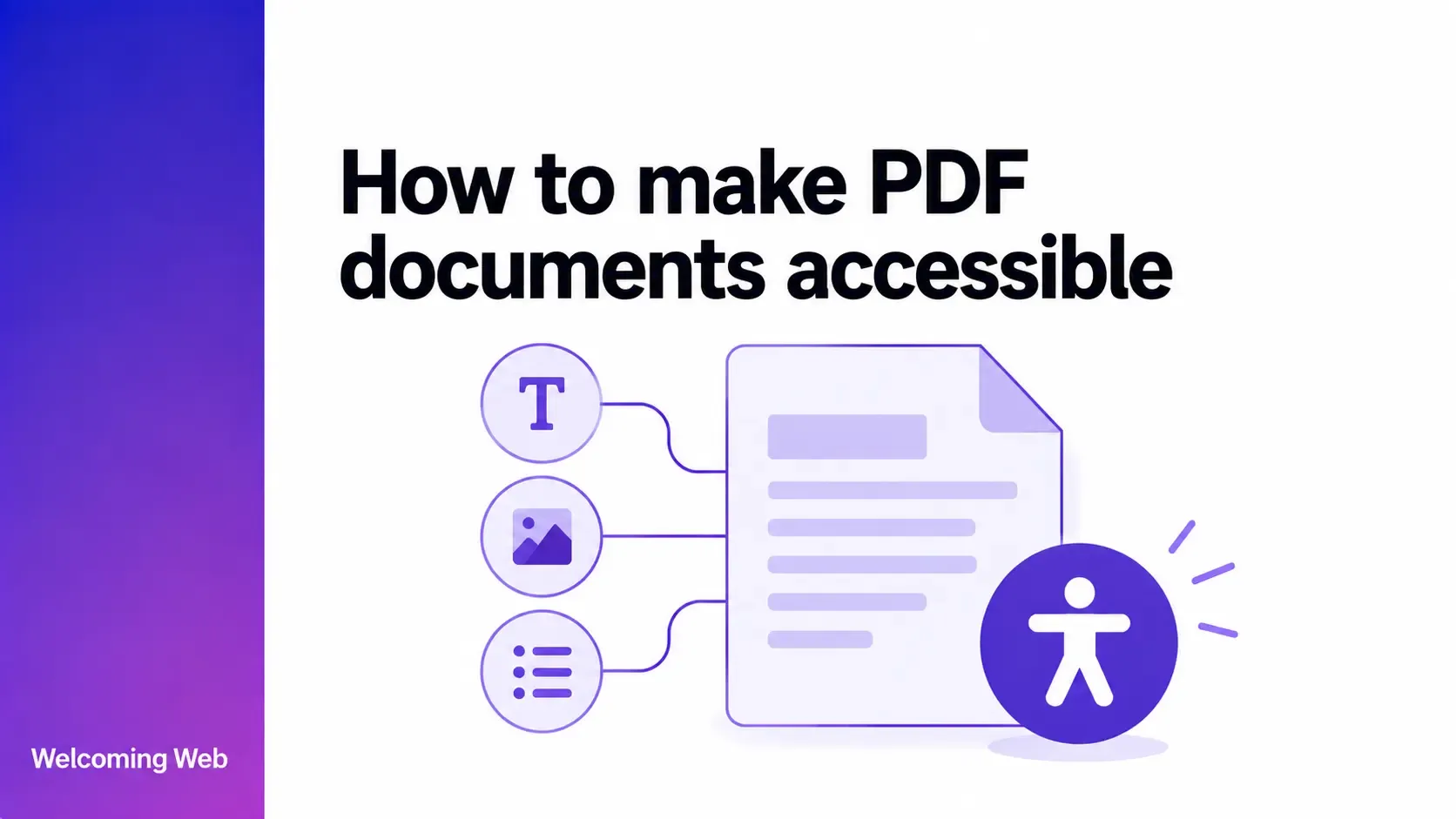
Accessible PDFs use readable text, meaningful structure, logical reading order, image alternatives, and accessible interactive elements. Accessibility should be considered in the source document and checked again after the PDF is created. This guide explains how to make PDF documents accessible, which elements to check, how WCAG applies to PDFs, and when another format may be more suitable.
What makes a PDF document accessible?
An accessible PDF preserves the meaning and structure of its content for people who do not rely solely on its visual layout. Headings, lists, tables, images, links, and other elements need information that assistive technologies can interpret.
People should also be able to navigate the document and operate any interactive elements using the input methods available to them. These considerations can form part of wider accessibility monitoring across the content an organisation publishes online.
A PDF can look correctly formatted while still containing accessibility barriers. PDF accessibility also depends on underlying document structure that may not be visible from its appearance.
How to make a PDF document accessible
Making a PDF document accessible involves checking its underlying structure, content, navigation, and interactive elements. The areas that need attention will depend on how the document was created and what it contains.
Start with an accessible source document
PDF accessibility often begins in Word, InDesign, or the original authoring software before the PDF is created. Use proper heading styles, structured lists, table headers, image alternatives, and other semantic features supported by the application.
Visual formatting does not necessarily provide the same structural information. Making text larger and bold, for example, does not give it the programmatic meaning of a heading.
Choose export settings that preserve the accessibility information in the source document. If a PDF needs extensive repairs and the original file remains available, correcting the source and exporting it again may reduce the amount of PDF-level remediation required.
Make scanned PDFs readable with OCR
A scanned PDF may contain images of pages instead of machine-readable text. Optical character recognition (OCR) converts characters shown within those images into text that software can process.
Review the recognised text after conversion. Poor scans, unusual formatting, multiple columns, handwritten content, and unclear characters can produce recognition errors that change the information presented to users.
Add and check PDF tags
PDF tags tell assistive technologies how different parts of a document are structured, including headings, paragraphs, lists, images, and tables. Inspect the tag tree after export and check that the tags match the structure and purpose of the content.
Pay particular attention to:
- Headings. Heading tags should reflect the hierarchy of the document rather than its visual formatting.
- Paragraphs. Body content should be represented as paragraphs instead of relying on positioning to establish its place in the document.
- Lists. Numbered and bulleted lists should use appropriate list structure, including their individual list items.
- Figures. Images and other figures should be identified correctly so any required text alternative can be associated with them.
- Tables. Tables need tags that preserve their rows, cells, and header relationships.
Also check for missing, incorrect, or poorly nested tags. The tag tree should represent the actual relationships between different parts of the document.
Check the reading order
Visual positioning does not always determine the sequence in which content is presented to assistive technologies. Multi-column layouts, sidebars, captions, footnotes, and complex designs can cause information to be encountered in an unexpected order.
Review the document from beginning to end. Related information should remain together, and the sequence should still make sense when the visual layout is unavailable. For interactive documents, separately check the tab sequence so keyboard users encounter controls in an order that supports the task they are completing.
Add alternative text to meaningful images
Informative photographs, diagrams, charts, icons, and other meaningful images need text alternatives that communicate the information or purpose they contribute.
Decorative images, on the other hand, should be identified appropriately so they do not add unnecessary information for screen reader users. The correct treatment depends on the role an image plays within that particular document.
Structure tables correctly
Tables need structural information that preserves the relationships between headers and data cells. Borders, spacing, colour, and positioning cannot communicate these relationships to every user.
Identify header cells correctly and make sure the table structure represents how its data is organised. Tables containing multiple header levels, merged cells, or irregular layouts can require additional work to establish those relationships.
For particularly complicated data, simplifying the table may make the information easier to interpret across different methods of access.
Make links accessible
Link text should communicate the destination or purpose of a link within its context. This helps people understand their options when navigating through links independently of the surrounding paragraphs.
Check that intended links function as links and are represented correctly within the PDF. A URL that appears visually on the page is not necessarily an interactive link.
Make interactive PDF forms accessible
Form controls need labels that identify what information each field requires. Instructions, required fields, and other information necessary to complete the form should also be available without depending on visual cues alone. Check that people can move through the complete form with a keyboard and reach every interactive control. The order should follow the intended completion flow.
Users also need to be able to identify errors and understand what needs correcting. Controls should expose the information assistive technologies require to communicate their purpose and current state.
Set the document title and language
Give the PDF an informative document title and identify its default language within the document properties.
Language information allows assistive technologies to apply appropriate pronunciation rules. Passages written in another language may also need to identify that change within the document.
The document title should identify the content clearly instead of relying solely on the filename shown by the PDF viewer.
Test the finished PDF
Automated PDF accessibility checkers can identify supported technical problems, but some aspects of document accessibility require human evaluation. Use several testing methods to assess the finished file:
- Run an automated accessibility check to identify detectable issues with properties, tags, and other supported requirements.
- Inspect the tag tree to confirm that the document structure represents the content accurately.
- Review the reading order to make sure information remains understandable without relying on its visual position.
- Navigate with a keyboard to check links, form controls, and the order in which interactive elements receive focus.
- Test with a screen reader to assess how headings, images, links, forms, and other structured information are communicated.
After making corrections, retest the affected areas to confirm that the changes work as intended.
What accessibility standards apply to PDFs?
PDF accessibility can fall within the scope of WCAG when PDF documents form part of web content. Relevant success criteria address areas including text alternatives, information and relationships, meaningful sequence, keyboard accessibility, link purpose, language, and accessible names.
W3C publishes PDF-specific techniques showing ways particular WCAG success criteria can be satisfied. These include techniques relating to OCR, tags, reading order, images, tables, links, forms, lists, language, and document titles.
The techniques are informative examples instead of separate requirements for WCAG conformance. WCAG success criteria define the normative requirements, and other techniques can also satisfy them.
Legal obligations affecting PDF documents depend on factors such as the organisation and jurisdiction. Teams following WCAG compliance requirements should account for relevant downloadable content when determining the scope of their accessibility work.
Should you publish content as HTML instead of a PDF?
PDF is useful when information needs a consistent downloadable format, is intended for printing, or serves a document-specific purpose. Reports, application materials, formal documents, and resources intended for offline use are common examples.
HTML may be more suitable for information primarily intended to be consumed online. Web content can adapt to different screen sizes and user settings, while navigation can connect the information directly with related pages and resources.
The maintenance requirements are also different. Maintaining PDF accessibility can require additional checks whenever a document changes. Frequently updated information may therefore be easier to manage as an HTML page.
Choose the format according to how people need to access and use the content. In some cases, organisations may provide both an accessible web version and a downloadable document when each serves a useful purpose.
Building PDF accessibility into your publishing workflow
When multiple people create or publish documents, accessibility responsibilities need to be defined before files reach the website. A consistent publishing workflow can reduce recurring problems and make it easier to maintain accessible documents as content changes. Businesses can support this by:
- Defining ownership. Establish who prepares accessible source files, checks exported PDFs, and approves documents for publication.
- Creating accessible templates. Build commonly used reports, policies, forms, and guidance documents from templates with appropriate structure already in place.
- Retaining editable source files. Keep the original accessible files so future revisions do not depend on repairing an old PDF.
- Maintaining a document inventory. Record which PDFs remain published and in use so older documents do not disappear from accessibility reviews.
- Prioritising important documents. Address files according to factors such as usage, the tasks they support, and whether an accessible alternative already exists.
These controls make PDF accessibility a defined part of content production and maintenance.
Creating more accessible digital content
Making PDF documents accessible helps ensure important information remains usable for people accessing it in different ways. For businesses publishing PDFs online, document accessibility should be considered alongside the accessibility of the website itself.
Reports, forms, policies, and other downloadable resources can all affect whether people can access the information they need. Including these documents within your wider accessibility efforts helps create a more consistent experience across your digital content.
Run a free accessibility scan with Welcoming Web to identify supported accessibility issues across your website and find barriers that may need attention.

Written by
Alisan Erdemli
CEO at Welcoming Web, and web accessibility technology expert
Connect on LinkedInReady to Make Your Website Accessible?
Join thousands of satisfied users who trust WelcomingWeb to deliver fully accessible, compliant, and inclusive digital experiences.