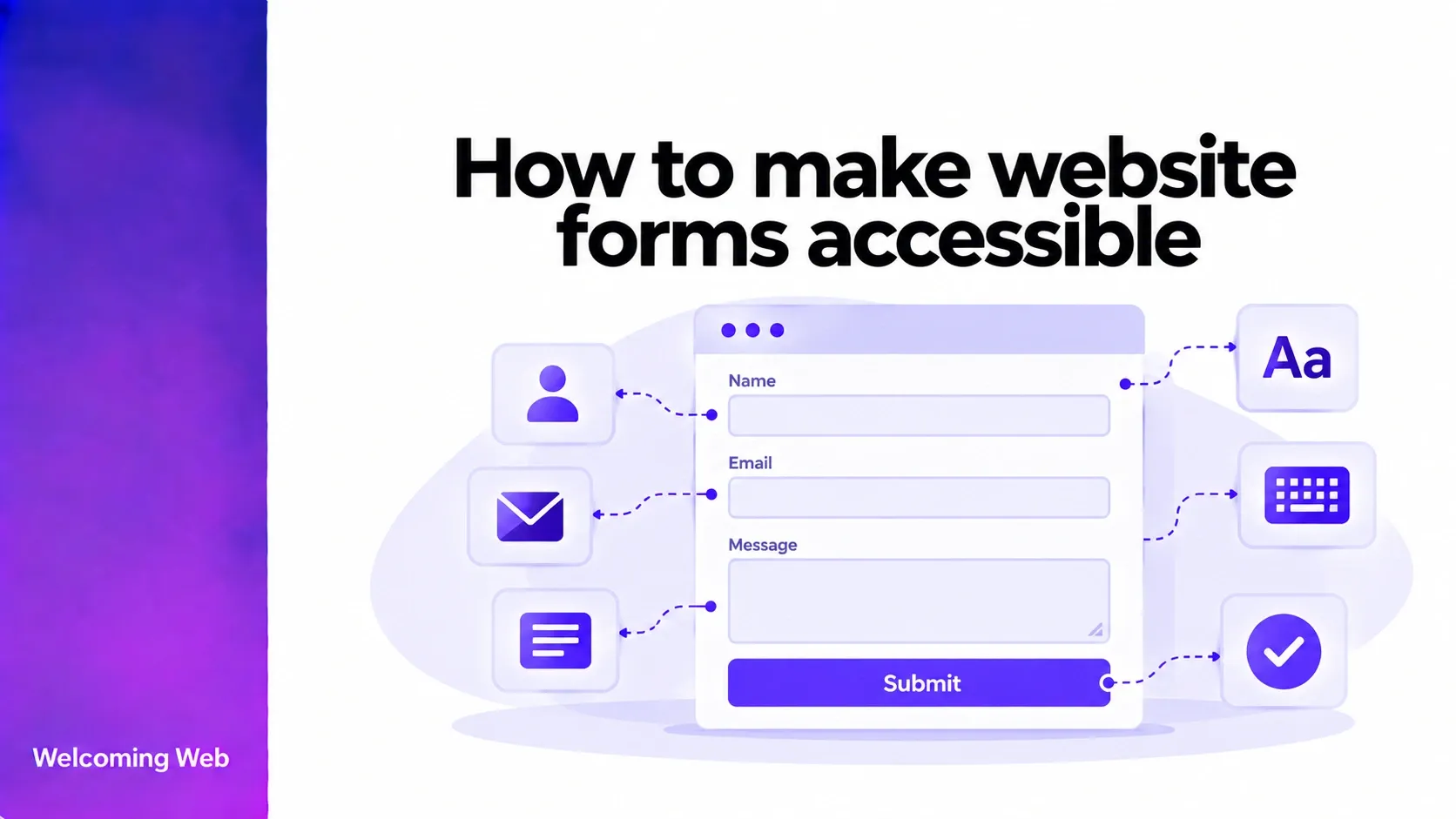
Website forms are accessible when people can understand each field, enter information, correct mistakes, and submit successfully using different input methods and assistive technologies. Good website form accessibility depends on clear labels, useful instructions, keyboard support, and accessible feedback. In this guide, you'll learn how to make website forms accessible using HTML examples, WCAG requirements, and practical testing techniques.
What makes a website form accessible?
An accessible website form allows people to complete its intended task regardless of whether they use a mouse, keyboard, screen reader, voice control, or another supported interaction method.
Form accessibility involves both the structure of individual fields and the experience of completing an entire form. The Web Content Accessibility Guidelines (WCAG) 2.2 include several requirements relevant to forms, covering labels, input assistance, keyboard access, error identification, and compatibility with assistive technologies.
The following WCAG success criteria are particularly relevant:
| WCAG criterion | What it means for forms |
|---|---|
| 1.3.1 Info and Relationships (A) | Field relationships and groups must be programmatically determinable or available in text. |
| 1.3.5 Identify Input Purpose (AA) | Supported fields collecting personal information must expose their purpose programmatically. |
| 2.1.1 Keyboard (A) | Form functionality must be operable using a keyboard, subject to the criterion's exception. |
| 2.4.7 Focus Visible (AA) | Keyboard focus must have a visible indicator. |
| 3.3.1 Error Identification (A) | Detected input errors must be identified and described in text. |
| 3.3.2 Labels or Instructions (A) | Labels or instructions must be provided when user input is required. |
| 3.3.3 Error Suggestion (AA) | Known correction suggestions must be provided where applicable, unless doing so would compromise security or purpose. |
| 4.1.2 Name, Role, Value (A) | Interface components must expose appropriate accessibility information. |
Meeting these criteria requires attention to both the HTML structure and the behaviour of the form.
7 best practices for accessible website forms
Improving form accessibility starts with how fields are structured, presented, and used. The following seven best practices cover the key elements of accessible form design, from clear labels and instructions to keyboard navigation, error handling, and successful submission.
1. Give every form field a clear label
Clear, correctly associated labels are one of the foundations of form accessibility. Every form field should have a label that explains what information the user needs to provide. Labels help people recognise the purpose of a field and allow assistive technologies to communicate that purpose.
For standard HTML forms, the most reliable approach is to use a <label> element associated with the corresponding input through matching for and id attributes.
For example:
<label for="email">Email address</label>
<input type="email" id="email" name="email">
Here, the label's for attribute matches the input's id. This establishes a programmatic association between the two elements.
It also makes the label clickable, helping users select smaller controls more easily.
Avoid using placeholders as labels
Placeholder text disappears or changes when someone enters information. It can also be difficult to read and may not provide a consistently accessible name for the field.
For example, this is insufficient:
<input type="email" placeholder="Email address">
A visible label should remain available throughout the interaction. Placeholders can provide supplementary examples, but they should not replace labels. The W3C's guidance on labelling form controls recommends explicit labels for most standard form fields.
Automated accessibility tools can help identify certain labelling problems. Welcoming Web checks for supported issues involving missing or incorrectly associated labels and provides guidance for addressing them.
2. Provide instructions and identify required fields
Labels identify individual controls, while instructions explain how to complete them correctly. Instructions are especially useful when a form requires a specific format, has unusual requirements, or asks for information that might otherwise be unclear. For example, a date field could include:
<label for="start-date">Start date (DD/MM/YYYY)</label>
<input type="text" id="start-date"
name="start-date">
The expected format is available before the user begins typing.
For more detailed instructions, use visible help text and associate it with the input using aria-describedby.
<label for="password">Create a password</label>
<p id="password-help">
Use at least 12 characters.
</p>
<input type="password" id="password"
aria-describedby="password-help">
The description can then be announced alongside the field's label by supporting screen readers.
Clearly identify required fields
Required fields should be identified visually and programmatically. A visible indicator such as “Required” helps people understand what must be completed, while the HTML required attribute communicates that requirement to the browser.
<label for="full-name">
Full name (Required)
</label>
<input type="text" id="full-name"
name="full-name" required>
If an asterisk identifies required fields, explain its meaning before the form. Avoid relying on colour to communicate required status.
The W3C's form instructions tutorial provides additional examples of presenting field requirements and instructions accessibly.
3. Group related form fields logically
Grouping related fields is an important part of form accessibility, particularly when individual options depend on a shared question. Radio buttons, checkboxes, and groups of related inputs often need a shared description. HTML provides two elements for this purpose:
- <fieldset> groups related controls.
- <legend> gives the group an accessible name.
For example:
<fieldset>
<legend>Preferred contact method</legend>
<input type="radio" id="contact-email"
name="contact" value="email">
<label for="contact-email">Email</label>
<input type="radio" id="contact-phone"
name="contact" value="phone">
<label for="contact-phone">Phone</label>
</fieldset>
This structure helps screen reader users understand that both options belong to the same question. Without a group label, someone navigating directly between radio buttons may hear the individual options without knowing what they refer to.
Grouping is also useful for addresses, payment details, and other related information. However, not every collection of fields needs a <fieldset>. Use it where the relationship provides meaningful context. The W3C's form grouping guidance explains how these elements support both visual understanding and assistive technology.
4. Make forms accessible using a keyboard
People should be able to complete a form without relying on a mouse or touchscreen. Native HTML controls generally provide established keyboard behaviour. Text fields accept typing, checkboxes can be toggled with the Space key, and radio button groups support keyboard selection. Custom controls require more care because developers may need to implement expected keyboard behaviour themselves.
Maintain a logical tab order
Keyboard users typically move between interactive controls using the Tab key. Focus should follow an order that makes sense in relation to the form's visual layout and intended completion sequence. Avoid positive tabindex values such as tabindex="3" to force an artificial order. A well-structured document will usually provide the correct sequence naturally.
Keep keyboard focus visible
Users need to know which control currently receives keyboard input. Browsers provide default focus indicators, but custom styling can accidentally remove them. If you change the default focus appearance, provide a clearly visible replacement that is distinguishable against its surrounding colours.
For example:
input:focus-visible,
select:focus-visible,
textarea:focus-visible,
button:focus-visible {
outline: 3px solid #2457d6;
outline-offset: 2px;
}
Also check that sticky headers, floating widgets, and other overlays do not obscure the focused field.
5. Make form validation and error messages accessible
Error handling is a critical part of form accessibility because users need to understand what went wrong and how to correct it. Form validation helps users recognise incorrect or incomplete information. Accessible validation makes those problems understandable and provides enough guidance to correct them. An error message should identify the affected field and explain what needs to change. For example, “Enter an email address in the format name@example.com” is more useful than “Invalid input”.
Associate errors with their fields
For custom validation, aria-invalid can indicate that a field contains an invalid value, while aria-describedby can associate the field with an explanatory message.
<label for="user-email">Email address</label>
<input type="email" id="user-email"
aria-invalid="true"
aria-describedby="email-error">
<p id="email-error">
Enter a valid email address.
</p>
These attributes provide additional information to supporting assistive technologies. Only set aria-invalid="true" when the field has been determined to contain invalid input.
Help users find errors after submission
For forms containing several errors, provide an error summary near the beginning of the form. The summary can identify each affected field and link directly to it. When a submission fails validation, move keyboard focus to the summary or otherwise ensure users are informed of the errors. Error messages should also remain visible near their associated fields.
Avoid relying on red borders, icons, or colour changes without explanatory text. The W3C's form validation tutorial provides guidance on required fields, input formats, and accessible validation behaviour.
6. Use appropriate input types and autocomplete
Choosing appropriate HTML input types can improve form accessibility by helping browsers and assistive technologies identify the information being requested.
For example:
- type="email" identifies an email address field.
- type="tel" identifies a telephone number field.
- type="password" identifies password input.
- type="number" supports numerical input where a numerical value and number controls are appropriate.
Use the type that matches the information being collected. Telephone numbers, for example, are identifiers rather than quantities, so type="tel" is generally more appropriate than type="number".
Support autocomplete for personal information
The autocomplete attribute identifies the purpose of supported fields collecting information about the user.
For example:
<label for="customer-name">Full name</label>
<input type="text" id="customer-name"
name="customer-name"
autocomplete="name">
<label for="customer-email">Email address</label>
<input type="email" id="customer-email"
name="customer-email"
autocomplete="email">
This can help browsers and assistive technologies recognise fields and may reduce the amount of information users need to enter manually. WCAG 2.2 Success Criterion 1.3.5 addresses the programmatic identification of supported input purposes. The W3C's explanation of Identify Input Purpose provides the relevant requirements and examples.
7. Make form submission and confirmation accessible
A form should clearly communicate what happens when someone submits it. After successful submission, provide a confirmation that explains the outcome. For example, a contact form might display “Your message has been sent” and explain when the user can expect a response.
For dynamically displayed confirmations, an appropriately implemented status message can allow supporting assistive technologies to announce the result without moving focus unnecessarily.
If submission fails because of a network or server problem, explain what happened and whether the user should try again.
Preserve entered information
A failed submission should not unnecessarily erase information the user has already provided. For longer or multi-step forms, preserve previous answers when users move backwards, encounter errors, or return to earlier steps.
WCAG 2.2 Success Criterion 3.3.7 also addresses redundant entry during the same process. Where previously supplied information must be entered again, it generally needs to be populated automatically or made available for selection, subject to specified exceptions.
For transactions involving legal commitments, financial information, or changes to user-controlled data, additional error-prevention requirements may apply. These can include opportunities to review, correct, or reverse submissions.
How to test form accessibility
Testing form accessibility involves checking whether people can understand, navigate, and complete forms using different input methods and assistive technologies. Combining automated accessibility checks with manual testing helps identify a wider range of potential barriers.
Automated tools can detect supported issues such as missing form labels and certain accessibility markup problems. Welcoming Web's accessibility compliance monitoring solutions help teams identify and track supported accessibility issues as websites change. However, manual testing is still necessary to evaluate how complete form interactions work.
When testing forms manually, focus on the following areas:
- Keyboard navigation: Check that users can navigate fields, select options, submit forms, and correct errors without a mouse.
- Screen reader compatibility: Verify that labels, instructions, required fields, and error messages are announced correctly.
- Zoom and reflow: Increase browser zoom and check that fields, buttons, and messages remain visible and usable.
- Form validation: Submit incomplete or incorrect information to check whether errors are clearly identified and can be corrected.
- Form submission: Confirm that successful and unsuccessful submissions provide understandable feedback.
Test across relevant browsers, devices, and assistive technologies to identify issues that may not appear during standard testing. For more complex forms, involving people with disabilities in usability testing can provide additional insight into the experience.
Make accessible forms part of website maintenance
Accessible forms help people complete essential website tasks, from sending enquiries to creating accounts and making purchases. Clear labelling, understandable instructions, predictable interactions, and useful feedback all contribute to a better experience.
Maintaining form accessibility also requires attention when websites change. New fields, updated validation rules, redesigned components, and third-party integrations can introduce issues into previously working forms.
Regular accessibility monitoring can help teams identify supported problems and prioritise improvements. To begin checking your website, run a free accessibility scan with Welcoming Web.

Written by
Alisan Erdemli
CEO at Welcoming Web, and web accessibility technology expert
Connect on LinkedInReady to Make Your Website Accessible?
Join thousands of satisfied users who trust WelcomingWeb to deliver fully accessible, compliant, and inclusive digital experiences.