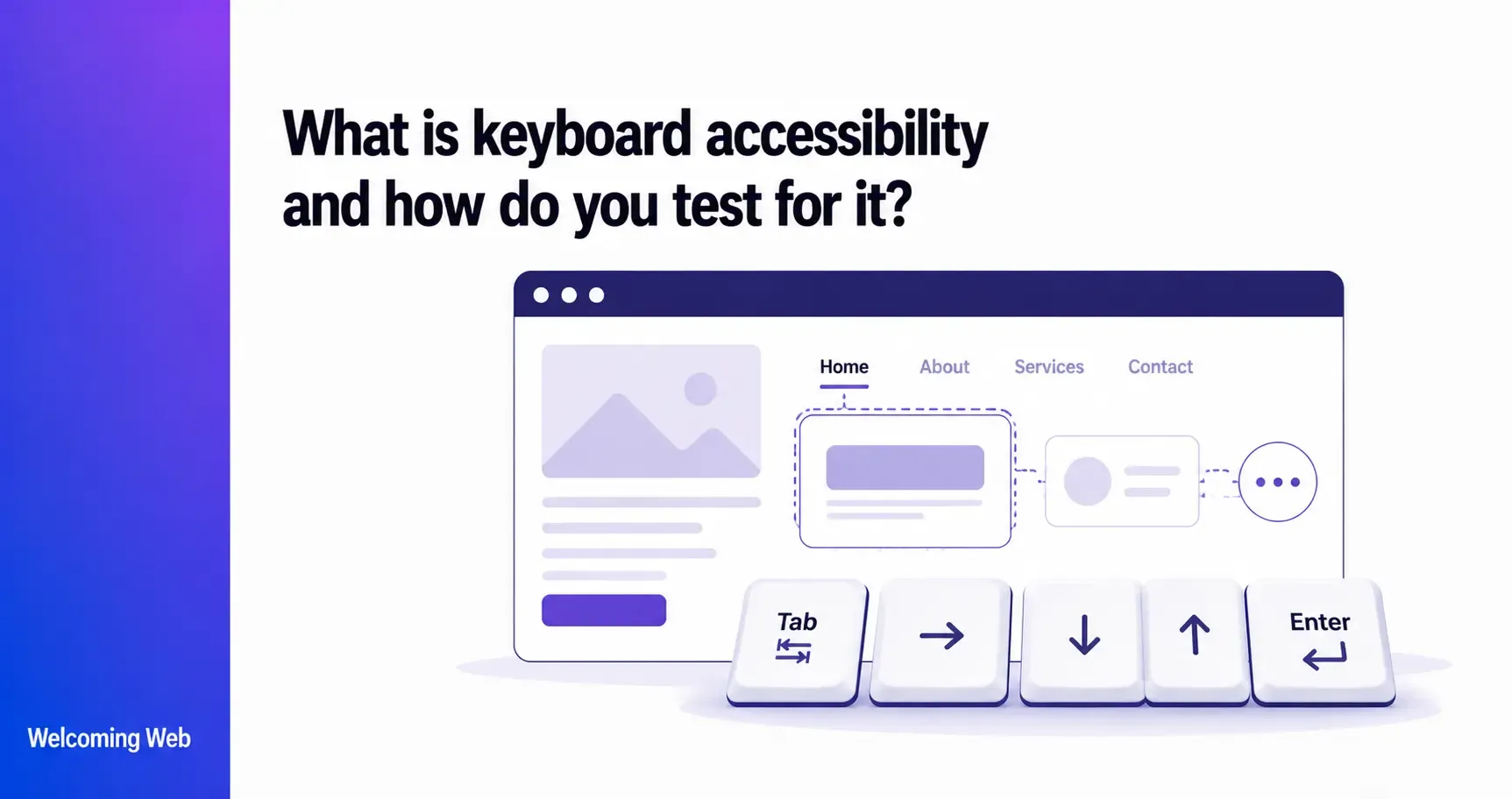
Keyboard accessibility means that every function on a website can be operated using a keyboard alone, without requiring a mouse or trackpad. It is a Level A requirement under WCAG, meaning it sits at the most fundamental level of accessibility conformance. This guide covers what keyboard accessibility requires, who depends on it, which WCAG success criteria govern it, what the most common failures look like, and how to test for keyboard accessibility issues manually.
What is keyboard accessibility?
Keyboard accessibility is a core component of website compliance and means that every function on a website can be operated using a keyboard alone, without requiring a mouse or trackpad. This includes navigating between pages, activating buttons and links, completing forms, opening and closing modals, and interacting with any custom component on the site. If any of those functions require a mouse to operate, they are inaccessible to users who cannot use one.
WCAG 2.1.1 Keyboard is a Level A success criterion, meaning it sits at the most fundamental level of accessibility conformance. The only exception is functionality that inherently requires input dependent on the path of the user's movement, such as freehand drawing. Virtually all standard website functionality falls outside that exception.
Who relies on keyboard accessibility to use the web?
Several distinct groups depend on keyboard accessibility to use the web. Understanding who they are helps explain why it is an important website accessibility requirement that sits at Level A in WCAG rather than being treated as an optional website enhancement.
Users with motor disabilities, including conditions such as Parkinson's disease, cerebral palsy, repetitive strain injury, and limb differences, may find mouse use difficult or impossible. These users navigate using a standard keyboard, a switch device, a sip-and-puff system, or other assistive input devices that emulate keyboard input. A website that cannot be fully operated by keyboard excludes them entirely from any functionality that requires a mouse.
Users who are blind navigate the web using screen readers, which interpret page content and announce it through audio or braille output. Screen readers are keyboard-driven by design. When a screen reader user navigates a site, they are using keyboard commands to move between elements, activate controls, and complete tasks. Keyboard accessibility failures affect screen reader users directly, even when the nature of the failure is not immediately obvious from a visual inspection.
Users with temporary impairments, such as a broken arm, a hand injury, or post-surgery recovery, may rely on keyboard navigation for a period of time. Power users who prefer keyboard shortcuts for efficiency also benefit from well-implemented keyboard accessibility.
What does WCAG require for keyboard accessibility?
Several WCAG success criteria govern keyboard accessibility. Understanding which criteria apply and at what conformance level helps teams prioritise what to test and fix.
- WCAG 2.1.1 Keyboard (Level A) is the foundational requirement. According to the W3C's understanding document for 2.1.1, all functionality must be operable through a keyboard interface without requiring specific timing for individual keystrokes. The only exception is functionality that inherently requires input dependent on the path of the user's movement, such as freehand drawing. This exception is narrow. Virtually all standard website functionality, including navigation, forms, buttons, dropdowns, modals, and custom interactive components, must be keyboard accessible.
- WCAG 2.1.2 No Keyboard Trap (Level A) requires that if keyboard focus can be moved to a component, it can also be moved away from that component using only a keyboard. Users must never become stuck inside a component with no way to exit using standard keyboard controls.
- WCAG 2.4.3 Focus Order (Level A) requires that when a page can be navigated sequentially, focusable components receive focus in an order that preserves meaning and operability. A logical focus order matches the visual reading order of the page.
- WCAG 2.4.7 Focus Visible (Level AA) requires that any keyboard-operable interface has a visible focus indicator, showing users where keyboard focus currently sits on the page.
- WCAG 2.4.11 Focus Not Obscured Minimum (Level AA) introduced in WCAG 2.2, requires that when a keyboard-focusable element receives focus, at least part of it remains visible and is not completely hidden by other content such as sticky headers or cookie banners.
- WCAG 2.5.7 Dragging Movements (Level AA) introduced in WCAG 2.2, requires that any functionality requiring a dragging gesture also has a single-pointer or keyboard alternative.
What are the most common keyboard accessibility failures?
Keyboard accessibility failures tend to cluster around a small number of recurring patterns. Knowing where they commonly appear helps focus testing effort on the highest-risk areas.
Keyboard traps. A keyboard trap occurs when focus enters a component and cannot be moved away without closing the browser or refreshing the page. Modal dialogs and custom dropdown menus are the most common source of keyboard traps, particularly when they are built with non-semantic HTML and no keyboard event handling.
Mouse-only functionality. Hover-triggered menus, drag-and-drop interfaces, and custom components built with div and span elements often respond only to mouse events. These elements are not in the tab order and cannot be activated by keyboard. Replacing or augmenting them with native HTML elements or adding appropriate keyboard event handlers is the standard fix.
Missing or invisible focus indicators. Without a visible focus indicator, keyboard users cannot tell where they are on the page. Many sites suppress the default browser focus outline using outline: none in CSS for aesthetic reasons, without providing an alternative. WCAG 2.4.7 requires a visible focus indicator at Level AA.
Illogical tab order. Tab order should follow the logical reading order of the page. When CSS is used to position elements visually in a different order to their DOM order, or when positive tabindex values are used to force a custom order, the result can be a tab order that jumps unpredictably around the page, making navigation confusing and difficult.
Focus not returning after modal close. When a modal dialog is opened and then closed, keyboard focus should return to the element that triggered the modal. If focus is lost or moved to an unexpected location, the user must navigate back through the page to find their place.
Interactive elements not reachable by Tab. Custom components built with non-semantic elements may not be included in the natural tab order. Elements that are visually interactive but programmatically inert are invisible to keyboard users.
How do you test keyboard accessibility manually?
Manual keyboard accessibility testing requires no specialist tools other than the keyboard itself and a browser. The process involves navigating entirely without a mouse and checking that all functionality works correctly.
What to do before starting: Disconnect or disable the mouse. This forces the tester to experience the site as a keyboard-only user would. Open the pages to be tested in the browser and note any functionality, forms, menus, or interactive components that will need checking.
Testing tab order and focus visibility: Press Tab repeatedly to move forward through all focusable elements on the page. At each step, check that:
- Focus is visibly indicated on the current element
- The element receiving focus is logical given the reading order of the page
- No elements are skipped that should be reachable
- Focus does not jump unexpectedly to a distant part of the page
Press Shift+Tab to move backward through the focus order and confirm it reverses correctly.
Testing interactive elements: For each interactive element reached by Tab, test that it can be activated using the keyboard as follows:
- Links and buttons: press Enter to activate.
- Buttons: press Space to activate.
- Checkboxes: press Space to toggle.
- Radio buttons: use arrow keys to select within a group.
- Dropdown menus: use arrow keys to navigate options, Enter to select, Escape to close.
- Modal dialogs: check that Tab cycles focus within the modal and does not escape to the page behind it, and that Escape or a clearly labelled close button dismisses the modal and returns focus to the trigger element.
Testing for keyboard traps: Open every modal, dropdown, flyout menu, and custom widget on the pages being tested. After opening each one, attempt to close it using Escape and navigate away using Tab. A keyboard trap exists if there is no way to exit the component without refreshing the page.
Testing skip navigation: Many sites include a "skip to main content" link that allows keyboard users to bypass repeated navigation. This link typically appears as the first focusable element on the page and is often visually hidden until it receives focus. Check that it is present, that it receives focus as the first Tab stop, and that activating it moves focus to the main content area as expected.
Testing forms: Navigate to each form field using Tab. Check that each field can be reached, that its label is announced correctly when focus arrives, that error messages are reachable and announced when validation fails, and that the form can be submitted using the Enter key.
Can automated tools detect keyboard accessibility issues?
Automated accessibility scanning tools can detect some keyboard accessibility failures, but the majority of keyboard issues require manual testing to identify.
Automated tools can identify elements that are missing from the tab order entirely when they should be reachable, images used as interactive elements without keyboard event handlers, and some instances of missing focus indicators where the CSS value is explicitly set to none.
What automated tools cannot detect includes keyboard traps, illogical focus order, focus management failures after dynamic content changes, and interactive components that respond to mouse events but not keyboard events. These require a human tester navigating the page without a mouse to identify.
Welcoming Web's scanning tools identify keyboard accessibility failures that are detectable through automated analysis, flagging each issue against the relevant WCAG success criterion. For keyboard issues that require manual testing, the scan results indicate where to focus attention, reducing the time needed to complete a thorough manual review.
Keyboard accessibility: what to take away
Keyboard accessibility sits at the foundation of WCAG compliance and affects a broader range of users than many teams assume. The most common failures (keyboard traps, mouse-only functionality, and missing focus indicators) are identifiable through a combination of automated scanning and straightforward manual testing with no specialist equipment required.
A free accessibility scan with Welcoming Web identifies the keyboard accessibility failures on your site that automated tools can detect. Manual testing, following the steps in this guide, will help you catch the rest.

Written by
Alisan Erdemli
CEO at Welcoming Web, and web accessibility technology expert
Connect on LinkedInReady to Make Your Website Accessible?
Join thousands of satisfied users who trust WelcomingWeb to deliver fully accessible, compliant, and inclusive digital experiences.