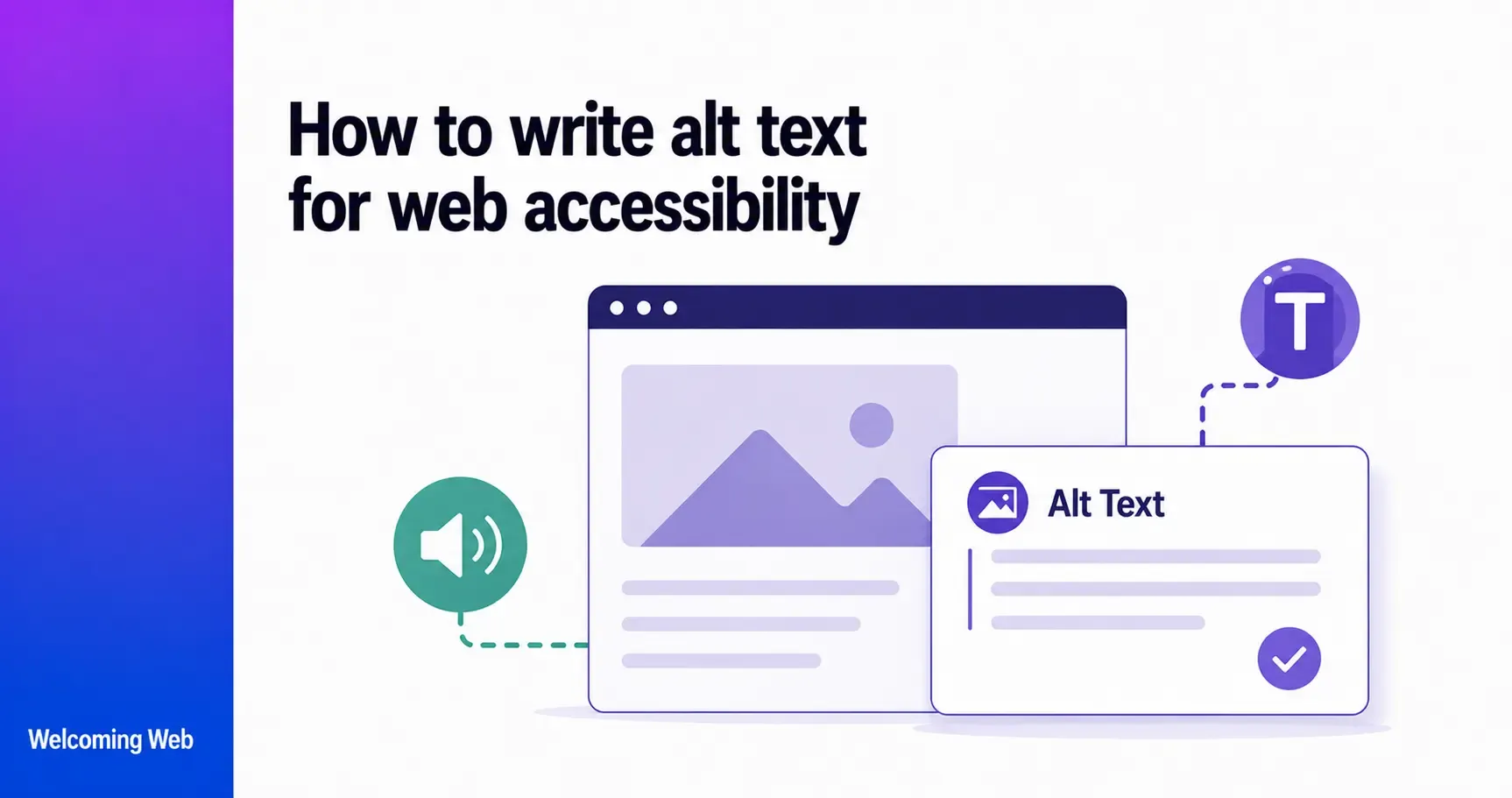
Alt text should describe what an image shows in plain language, giving screen reader users the same understanding a sighted user would have. Keep descriptions concise, reflect the image's purpose in context, and use an empty alt attribute for decorative images. This guide covers how to write alt text for different image types, the WCAG requirements behind it, and the most common mistakes to avoid.
What is alt text and why does it matter for accessibility?
Alt text, short for alternative text, is an HTML attribute added to an image tag that describes the content or function of the image. When a screen reader encounters an image, it reads the alt text aloud to the user, making it very important for website accessibility. When an image fails to load, the alt text appears in its place. When a search engine crawls a page, it reads the alt text to understand what the image shows.
For users who are blind or have low vision, alt text for website accessibility is what determines whether they can access the information an image contains. Without it, a screen reader user encounters a filename like "IMG_4823.jpg" read aloud, or silence, depending on the browser and screen reader combination.
Missing image alt text is consistently one of the most common accessibility failures found during website audits. It affects real users on every visit, is detectable in seconds by an automated scan, and is cited regularly in ADA demand letters and WCAG audit reports.
What does WCAG require for alt text?
WCAG success criterion 1.1.1 Non-text Content is a Level A requirement, the most fundamental level of accessibility conformance. It states that all non-text content presented to the user must have a text alternative that serves the equivalent purpose.
The key phrase here is "serves the equivalent purpose." WCAG does not simply require any text to be present. It requires text that gives a screen reader user the same understanding of the image as a sighted user would have. A description that says "image" or "photo" does not meet that standard.
WCAG 1.1.1 applies to:
- Informative images that convey content
- Functional images such as image buttons and linked images
- Images of text
- Complex images such as charts, graphs, and diagrams
- Groups of images where multiple images together convey a single piece of information
Purely decorative images are exempt. These should use an empty alt attribute (alt="") to signal to screen readers that the image carries no information and should be skipped.
What is the difference between missing alt text and empty alt text?
This distinction between missing alt text and empty alt text is one of the most commonly misunderstood aspects of implementing alt text for accessibility, and getting it wrong creates problems in both directions.
Missing alt text means the alt attribute is absent from the image tag entirely: <img src="photo.jpg">. When a screen reader encounters this, it typically reads the filename instead, producing unhelpful output like "photo dot jpg" or "IMG underscore 4823 dot png." Missing alt text on an informative image is a WCAG 1.1.1 failure.
Empty alt text means the alt attribute is present but intentionally blank: <img src="photo.jpg" alt="">. This tells the screen reader to skip the image entirely. Empty alt text is the correct implementation for decorative images such as background patterns, purely aesthetic dividers, or icons that appear next to text that already describes their function.
The practical test: if removing the image would cause a sighted user to lose information, the image is informative and needs descriptive alt text. If removing the image would make no difference to the understanding of the page, the image is decorative and should use alt="".
How do you write effective alt text?
Understanding how to write alt text well involves a lot more than simply adding any description to an image. These alt text best practices consistently produce descriptions that serve both screen reader users and WCAG compliance requirements:
- Describe the content, not the container. Screen readers already announce that they are reading an image, so starting alt text with "image of" or "photo of" wastes the reader's attention. Begin with the description itself.
- Be specific about what matters. A product image on an ecommerce site might need colour, style, and key visual features. A headshot on a team page might need the person's name and role. Ask what information a sighted user gains from the image in that context and convey that.
- Keep it concise. 125 characters is a widely used guideline. If a complex image requires more to describe adequately, supplement with a visible caption or a linked long description rather than writing an unwieldy alt attribute.
- Reflect context. The same image may need different alt text depending on where it appears. A photo of a golden retriever on a pet adoption page might need "Max, a 3-year-old golden retriever available for adoption." The same photo used decoratively on a veterinary homepage might need alt="". Context determines what information the image is communicating, and the alt text should reflect that.
- Include text that appears in the image. If an image contains text, such as a promotional banner, a logo, or a slide from a presentation, that text must appear in the alt attribute. Screen readers cannot read text rendered as part of an image.
How do you write alt text for different image types?
Different image types require different approaches when it comes to writing their alt text for accessibility. The W3C's alt text decision tree is a reliable primary reference for navigating these distinctions.
Informative images
Informative images convey content that is essential to understanding the page. The alt text should describe the information the image conveys, not simply what the image depicts.
A news article with a photo of storm damage might use: "Fallen trees blocking the main road after Tuesday's storm" rather than "trees" or "storm photo."
Functional images
Functional images are used as buttons, links, or form controls. The alt text should describe the function rather than the visual appearance. For example, a magnifying glass icon that activates a search function should use: "Search" rather than "magnifying glass icon." Similarly, a company logo that links to the homepage should use: "Company name, return to homepage" rather than a description of the logo's visual design.
Decorative images
Decorative images add visual interest but convey no information relevant to the page's content. These need to use the empty alt text that was discussed earlier in this guide. Use alt="". Do not omit the alt attribute entirely, as this leads to accessibility issues and does not align with WCAG guidelines.
Complex images
Charts, graphs, diagrams, and infographics often convey significant data that cannot be summarised in 125 characters. Two approaches work well:
A short image alt text that summarises the key finding, such as "Bar chart showing 25% increase in quarterly sales from Q1 to Q4 2024," combined with a more detailed description in a visible caption or an adjacent data table.
For very complex diagrams, the aria-describedby attribute can link the image to a longer description elsewhere on the page.
Images of text
When text is rendered as part of an image rather than as actual HTML text, the alt attribute must include that text verbatim. WCAG 1.4.5 Images of Text (Level AA) also requires that actual text is used wherever possible instead of images of text.
What are the most common alt text mistakes?
Several patterns consistently produce poor alt text that fails both users and WCAG requirements. Understanding these is as useful as knowing alt text best practices, because the same errors appear repeatedly across websites of every size.
Starting with "image of" or "photo of." Redundant and wastes the reader's attention. Start directly with the description.
Using the filename as alt text. "IMG_4823.jpg" or "banner-graphic-v3-FINAL.png" tells a screen reader user nothing useful. This often happens when content management systems auto-populate the alt field with the filename.
Writing the same alt text for every image. "Company image" or "decorative graphic" appearing on every image tells users nothing about any specific image.
Keyword stuffing. Adding irrelevant keywords to alt text to influence search rankings produces poor accessibility and risks search engine penalties. A genuine image description that accurately reflects what the image shows will naturally include relevant terms without gaming the system.
Leaving complex images with a one-word description. A chart described only as "chart" or "graph" fails to convey the data the image contains, leaving screen reader users without the information the image was included to communicate.
Using empty alt text on functional images. A button with an image icon and alt="" cannot be identified or activated by a screen reader user. Functional images always need descriptive alt text.
How does Welcoming Web support alt text compliance?
Welcoming Web's scanning tools check pages against WCAG 2.2, ADA Title III, EN 301 549, and UK Equality Act 2010 standards. Images missing the alt attribute entirely, images with empty alt text where a description is needed, and images of text without appropriate text alternatives are all flagged in the scan results. Each issue includes the page it appears on, the element affected, and the WCAG success criterion it relates to.
For supported issue types, Welcoming Web's AI-assisted remediation generates suggested image descriptions that teams can review before applying. No description is applied without approval. Teams can also choose to write descriptions manually if they prefer, using the scan results to identify which images need attention.
A free accessibility scan takes 60 seconds and gives you a prioritised list of alt text issues on your site, alongside every other accessibility failure detected against recognised standards.
Alt text and WCAG compliance key takeaways
Alt text is one of the most fundamental accessibility requirements on any website and one of the most commonly failed. WCAG 1.1.1 requires a text alternative that serves the equivalent purpose of the image. This means including a genuine description that gives screen reader users the same understanding a sighted user would have.
Run a free accessibility scan with Welcoming Web to identify alt text issues alongside other website accessibility issues on your site and get a concrete starting point for addressing them systematically.

Written by
Alisan Erdemli
CEO at Welcoming Web, and web accessibility technology expert
Connect on LinkedInReady to Make Your Website Accessible?
Join thousands of satisfied users who trust WelcomingWeb to deliver fully accessible, compliant, and inclusive digital experiences.