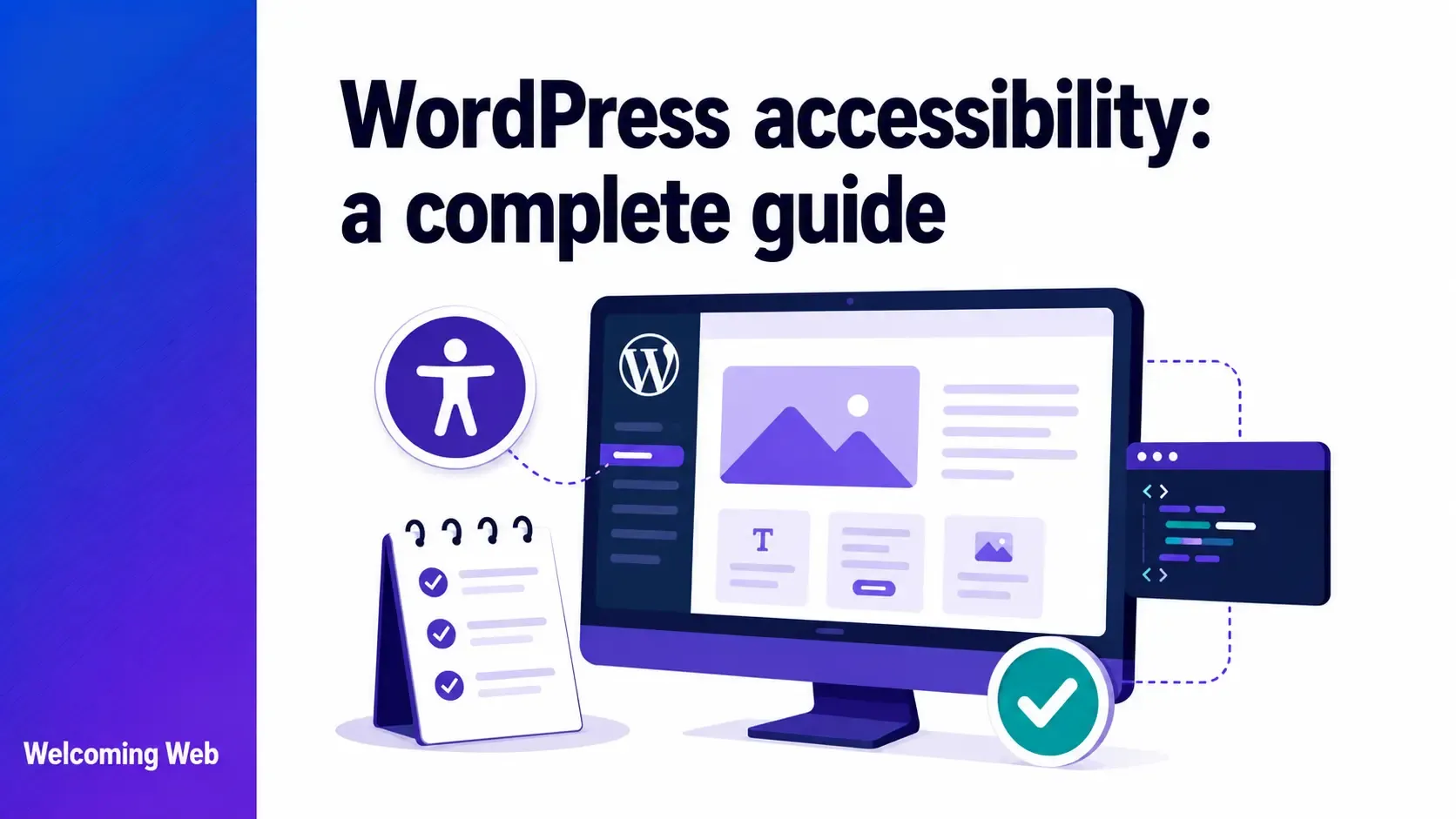
WordPress powers approximately 43% of all websites, making it the world's most widely used content management system. Accessibility on a WordPress site is not determined by the platform alone. Themes, plugins, the page builder, and the content all shape whether the site works for users with disabilities. This guide covers what WordPress accessibility requires, where common failures occur, how to test for them, and what to do about them.
Is WordPress accessible out of the box?
WordPress core supports website accessibility in mind, but a finished WordPress site is only as accessible as the theme, plugins, and content built on top of it. The WordPress Accessibility Coding Standards require that all new code submitted to WordPress.org conforms with WCAG 2.1 Level AA. The WordPress Accessibility Team, a dedicated group of contributors within the open source project, reviews core code for accessibility compliance and maintains those standards.
The Gutenberg block editor has improved substantially since its initial release. A WPCampus-commissioned audit in 2019 found significant and pervasive accessibility problems in the early editor. Those findings brought greater attention to assistive technology user needs within the WordPress community, and improvements have been steadily incorporated into subsequent releases.
What core accessibility does not cover is everything added on top of it. A WordPress site built on an inaccessible theme with accessibility-unaware plugins can fail WCAG on almost every page regardless of how well the core platform performs. WordPress accessibility requires attention to theme selection, plugin choice, and content practices, not simply a reliance on the platform's built-in foundations.
Why do WordPress themes cause so many accessibility failures?
The theme controls the most critical accessibility properties of a WordPress site's front end: heading hierarchy, colour contrast, keyboard navigation, focus indicators, and landmark regions. An inaccessible theme creates barriers that content and plugins cannot compensate for. Several specific theme-related failures appear consistently across WordPress sites:
- Suppressed focus indicators. Many WordPress themes suppress the default browser focus outline using outline: none in their CSS, removing the visible indicator that shows keyboard users where they are on the page. This is a WCAG 2.4.7 failure (Focus Visible, Level AA) and one of the most widespread keyboard accessibility failures on WordPress sites.
- Incorrect heading hierarchy. Theme templates frequently output headings in the wrong order, using <h2> or <h3> elements for visual styling rather than document structure. A site where every blog post card uses an <h3> because it looks right visually, regardless of where it sits in the page hierarchy, fails WCAG 1.3.1 (Info and Relationships, Level A).
- Low colour contrast in default styles. Theme default colour schemes, particularly those using light grey text, muted pastels, or transparent overlays on images, frequently fail the 4.5:1 contrast ratio required by WCAG 1.4.3 (Contrast Minimum, Level AA).
- Missing skip navigation links. A skip navigation link allows keyboard users to bypass the main navigation and jump directly to the page content. Many WordPress themes do not include one, forcing keyboard users to tab through every navigation item on every page load.
- Non-semantic layout markup. Classic themes and page builders that generate deeply nested <div> structures rather than semantic HTML elements give screen readers no structural information about what each section of the page does.
Which WordPress themes are best for accessibility?
Full Site Editing themes built natively on the Gutenberg block editor tend to have better website accessibility foundations than classic themes. WordPress's own Twenty Twenty-Five theme is designed to meet WCAG guidelines. Other FSE themes including Ollie, Kadence, Astra, and Blocksy include built-in accessibility features. Classic page builders like Elementor, Divi, and WPBakery generate less semantic HTML and require more active accessibility work to compensate for their output.
Why do WordPress plugins introduce accessibility barriers?
Every plugin installed on a WordPress site has the potential to introduce new accessibility barriers, particularly those that add interactive elements to the front end. The most common plugin-introduced failures include:
Contact forms with unlabelled fields. Form builder plugins frequently output form fields without properly associated labels. A field with placeholder text but no <label> element fails WCAG 1.3.1 and 4.1.2, and is effectively invisible to screen reader users.
Sliders and carousels with no pause control. Plugins that add image sliders or content carousels often autoplay without providing a mechanism to pause, stop, or hide the motion. This fails WCAG 2.2.2 (Pause, Stop, Hide, Level A) and creates barriers for users with vestibular disorders, cognitive disabilities, and anyone using a screen reader.
Cookie consent banners that trap keyboard focus. Cookie consent plugins frequently render a modal or banner on page load that traps keyboard focus, preventing users from navigating the rest of the page until the banner is dismissed. If the banner itself is not keyboard accessible, users relying on keyboard navigation cannot proceed at all.
Popup and modal plugins without focus management. Plugins that trigger modal dialogs on user interaction often fail to move focus into the modal when it opens, and fail to return focus to the trigger element when it closes. This leaves keyboard and screen reader users disoriented.
Social sharing and chat widgets. Third-party widgets embedded through plugins are frequently inaccessible and outside the direct control of the site owner to fix. The responsibility for the accessibility of embedded widgets sits with the vendor.
What are the most common WordPress accessibility issues?
Beyond theme and plugin failures, several accessibility issues appear consistently on WordPress sites regardless of the theme or plugins in use. These include the following:
Missing or empty image alt text. Every image uploaded to the WordPress media library has an alt text field, but filling it in is not enforced. Images added without alt text, or images where the alt field is auto-populated with the filename, create WCAG 1.1.1 failures across every page where they appear.
Non-descriptive link text. "Read more" links appended to post excerpts are a consistent WordPress pattern. A page with multiple "Read more" links that all lead to different posts fails WCAG 2.4.4 (Link Purpose in Context, Level A) because a screen reader user navigating by links cannot tell where each one leads.
Inaccessible navigation menus. WordPress navigation menus that expand on hover rather than on click or keyboard interaction are inaccessible to keyboard users. Submenu items are unreachable without a mouse.
Missing page titles. Duplicate or missing page titles are a common WordPress issue, particularly on sites using SEO plugins where the title field has been left empty or populated with a generic default.
Inaccessible Gutenberg blocks. Individual blocks, particularly third-party blocks from block libraries, can output inaccessible HTML. Custom blocks built by developers for specific site needs are particularly variable in their accessibility output.
How do you test a WordPress site for accessibility?
Testing a WordPress site for accessibility uses the same combination of automated scanning and manual review that applies to any website accessibility audit, with some WordPress-specific considerations.
- Automated scanning. Running automated scans across a representative sample of WordPress page templates gives a site-wide picture of accessibility failures without manually checking every page. The most useful templates to include are the homepage, a standard page, a blog post, a category archive, and any page with a form or checkout flow, since these cover the widest range of components and content types. Welcoming Web identifies issues against WCAG 2.2, ADA Title III, EN 301 549, and UK Equality Act 2010 standards, linking each one to the specific criterion it relates to so the results are actionable.
- Manual keyboard testing. Navigate the WordPress site using only the Tab key and check that all interactive elements, including the navigation menu, dropdowns, forms, buttons, and modals, can be reached and operated. Check that a visible focus indicator is present on every element that receives focus.
- Screen reader testing. Test the site with NVDA and Firefox or Chrome on Windows, or VoiceOver and Safari on macOS. Navigate by headings to check that the heading structure reflects the intended page hierarchy. Check that images are announced with meaningful descriptions and that form fields are announced with their labels when focus arrives.
- Theme and plugin audit. Review the theme's CSS for outline: none or outline: 0 declarations that suppress focus indicators. Check every plugin that renders front-end output for keyboard accessibility and screen reader compatibility, paying particular attention to form builders, popup plugins, slider plugins, and cookie consent tools.
How do you fix WordPress accessibility issues?
Theme-level fixes require either editing the theme's code in a child theme, or switching to a more accessible theme. Reinstating focus indicators by overriding outline: none in a child theme stylesheet immediately improves keyboard accessibility across the entire site. Heading hierarchy fixes in theme templates typically require child theme template overrides.
Plugin-level fixes sometimes require contacting the plugin developer to request accessibility improvements. Where that is not practical, switching to a more accessible alternative is the most reliable solution. For form builders, Contact Form 7 with proper configuration and Gravity Forms with accessibility settings enabled are commonly used accessible alternatives.
Content-level fixes including missing alt text, non-descriptive link text, and missing page titles can be addressed directly in the WordPress admin without code changes. The media library allows alt text to be added or edited for any image. Post and page editors allow link text and page titles to be updated directly.
Gutenberg block fixes for inaccessible blocks may require contacting the block developer or replacing the block with a more accessible alternative. The WordPress Accessibility Team maintains a list of known accessibility issues in core blocks on GitHub.
Welcoming Web's AI-assisted remediation generates suggested fixes for supported issue types identified during scanning, including missing image descriptions, colour contrast failures, and unlabelled form fields. Teams can review each suggestion before it is applied and choose to handle fixes manually if they prefer.
WordPress accessibility and legal compliance
WordPress sites are subject to the same legal accessibility obligations as any other website. ADA Title III, the European Accessibility Act, and the UK Equality Act all apply regardless of the platform used to build them.
WordPress sites appear frequently in ADA demand letters because common failures, including inaccessible contact forms, suppressed focus indicators, and low-contrast default themes, are straightforward for plaintiff attorneys to identify through automated scanning.
For organisations in the EU, the European Accessibility Act became enforceable on 28 June 2025. WordPress-powered ecommerce sites, booking platforms, and digital services serving EU consumers are covered.
Welcoming Web scans WordPress pages against WCAG 2.2, ADA Title III, EN 301 549, and UK Equality Act 2010 standards. The dashboard tracks whether issues are new, fixed, or reappearing between scans, and reports can be exported in PDF or CSV format for compliance documentation.
Every layer of a WordPress site shapes its accessibility
A WordPress site's accessibility depends on decisions made at every layer: the theme, the plugins, the content, and the monitoring that catches regressions before users encounter them. A failure at the theme level creates barriers that content and monitoring cannot compensate for, which is why understanding where the current gaps are is the most useful starting point.
Each new theme update, plugin release, or content change can introduce new barriers. A monitoring schedule that catches them early keeps the remediation effort manageable. Run a free accessibility scan with Welcoming Web to try out our tools and see where your WordPress site currently stands.

Written by
Alisan Erdemli
CEO at Welcoming Web, and web accessibility technology expert
Connect on LinkedInReady to Make Your Website Accessible?
Join thousands of satisfied users who trust WelcomingWeb to deliver fully accessible, compliant, and inclusive digital experiences.